Donorbox integrates with QuickBooks through Stripe by using Commerce Sync. This guide explains how to set it up and the benefits for your nonprofit.
Getting Started
Before you begin, make sure your Donorbox account is connected to Stripe.
Getting started with Donorbox
Once Stripe is connected, you’ll be ready to activate Commerce Sync and link it to QuickBooks.
Setting up Commerce Sync
Go to the Commerce Sync activation link.
-
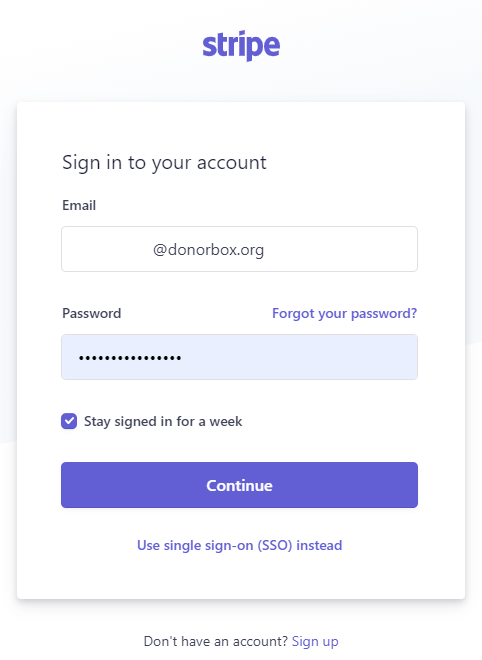
Log in to your Stripe account if you aren’t already.
-
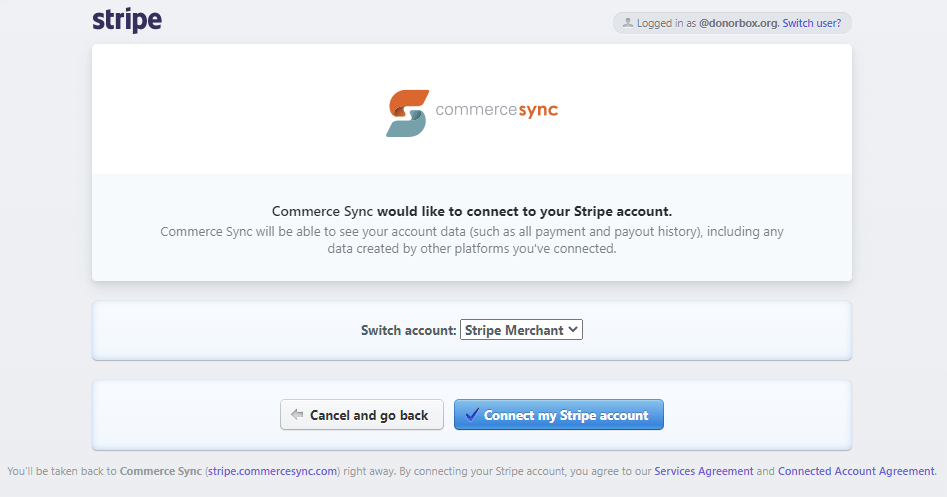
Grant Commerce Sync access to your Stripe account by clicking Connect my Stripe account.
-
Once connected, Commerce Sync will authorize and link to your Stripe (and thus your Donorbox donations).

Connecting to QuickBooks
Commerce Sync lets you connect to:
QuickBooks Online (most popular)
QuickBooks Desktop
Xero (installation guide here)
For QuickBooks Desktop support, contact stripe-support@commercesync.com.
Once you’ve connected Stripe, the screen below will also show access to email, chat, and knowledge base support:

Steps
Choose your preferred QuickBooks version.
-
Log in to QuickBooks when prompted.

-
Click Connect to authorize Commerce Sync.

After you authorize the connection, there are two final setup steps:
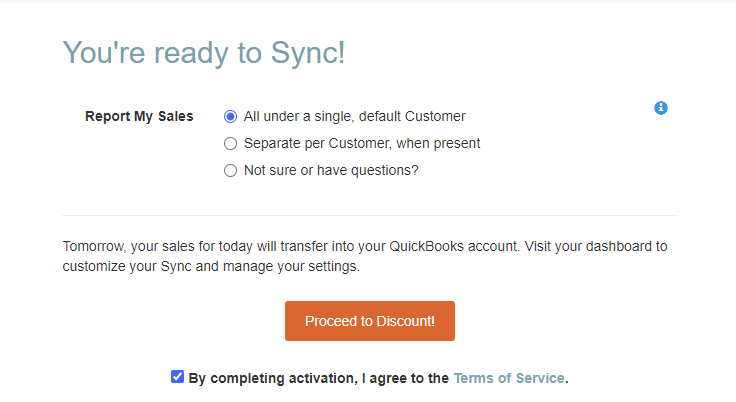
Choose your sales detail – You can either track donations individually by customer or group them into a daily summary. We strongly recommend the customer detail option since it’s especially useful for donation-based organizations and one of the key reasons Donorbox partnered with Commerce Sync.
Enter your payment information – All accounts include a 15-day free trial before billing begins. You’ll be prompted to enter a credit card (required to continue). Previously, users could skip this step, but now every account must enter payment information.
Once complete, Commerce Sync will automatically log all your Donorbox donations into QuickBooks on a daily basis.
Viewing Donorbox Donations in QuickBooks
Commerce Sync automatically transfers your Donorbox donations from Stripe into QuickBooks every night. You can also request a special historical transfer if needed.
To view your donations: In QuickBooks, go to Sales in the side navigation.

You’ll see each donation listed with customer details and automated deposits that reconcile with Stripe fees.
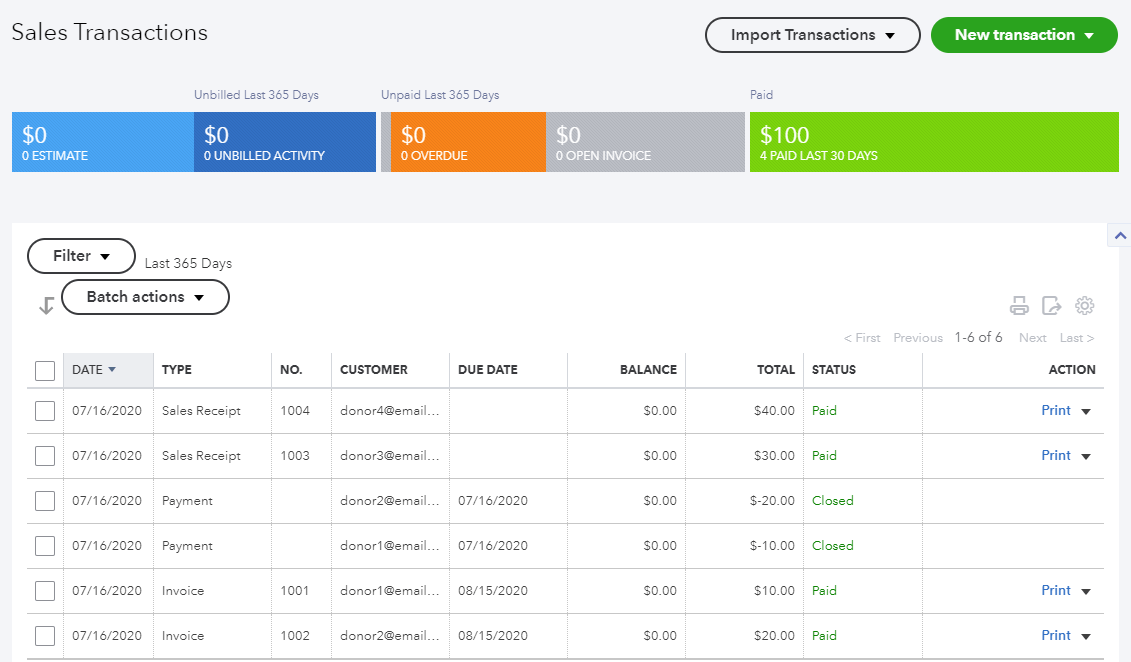
By default, donations appear as Invoice + Payment, but with the Customer Detail option, you can also choose Sales Receipts. This feature links repeat donors to existing records instead of creating duplicates.
Viewing Deposits
As we know, Stripe sends you donation funds in the form of a payout. Commerce Sync represents this in QuickBooks in the form of a deposit. Here is an example of what that would look like if the above 4 donations were settled by Stripe at the same time:
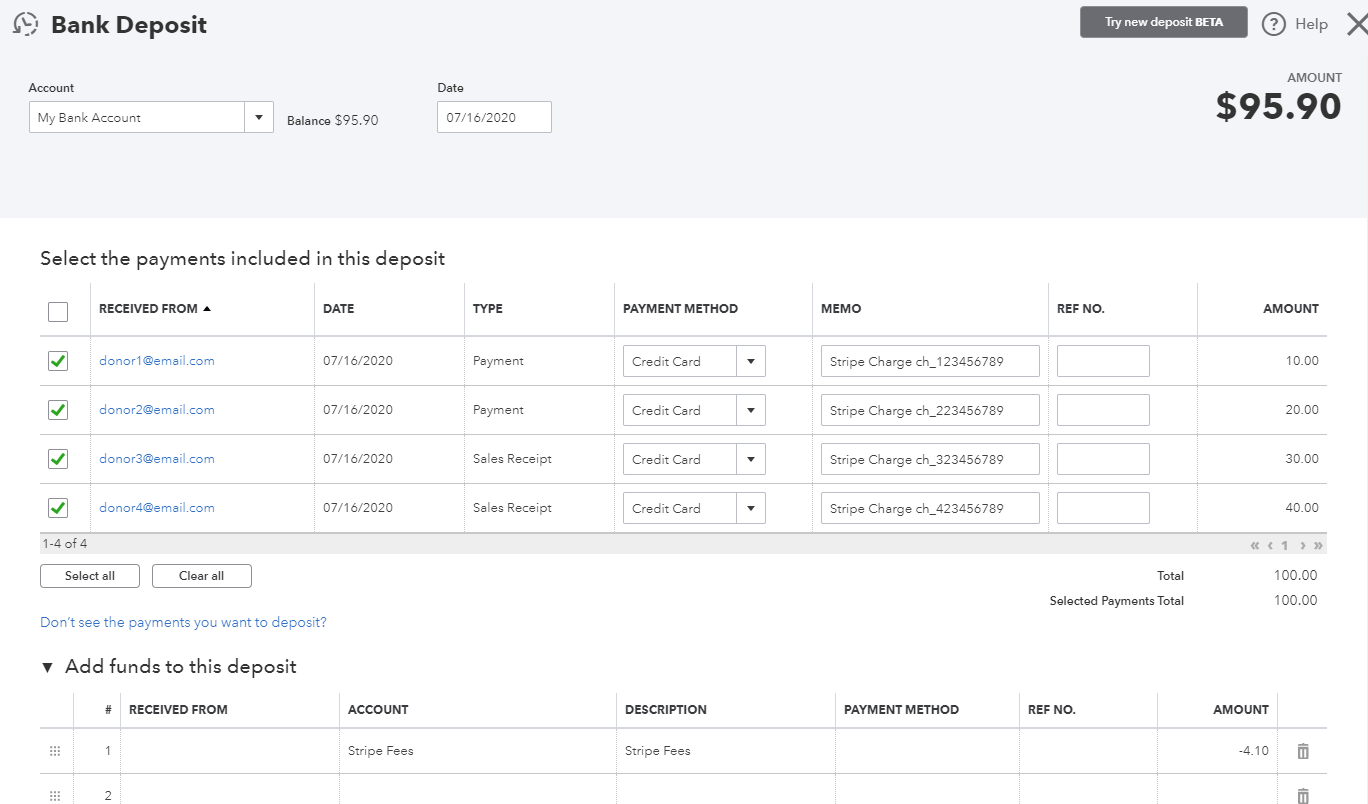
Note the following important characteristics of the automated reconciliation flow:
- Each of the 4 donations is marked for deposit – whether entered as a payment to an invoice or as a sales receipt.
- The processing fees are represented as a separate, negative line mapped to a dedicated expense account.
- The overall amount is entered into the bank account of your choice, shown by the drop-down at the top of the deposit:
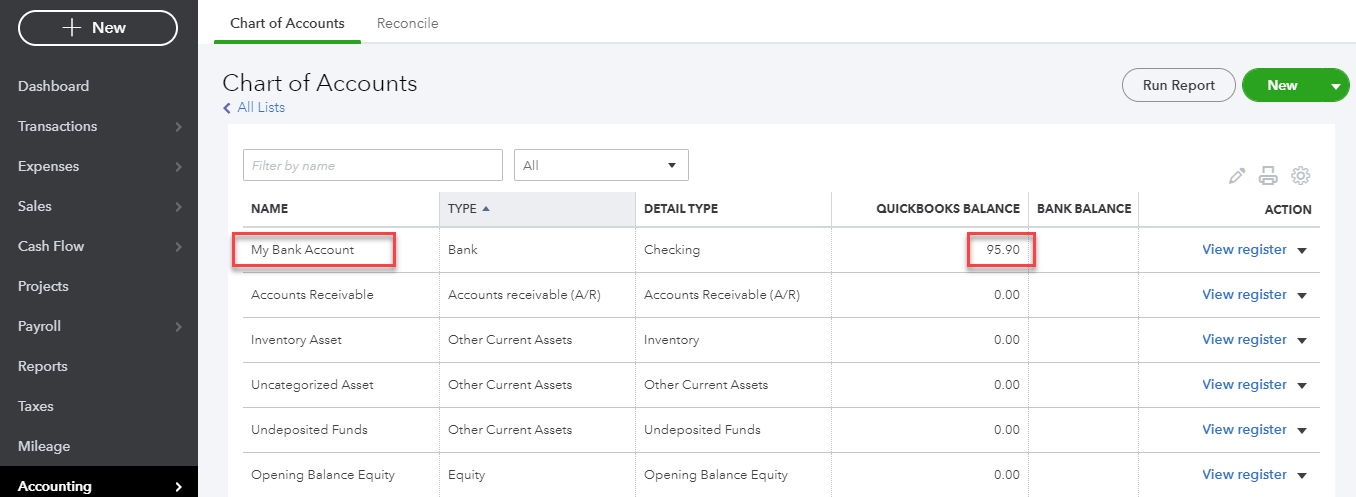
Best of all, this feature is complementary to any bank feeds you have connected to QuickBooks. When the expected paid amount matches your bank, reconciliation is done, saving you the manual trouble!
Benefits of Commerce Sync
Save time – No manual data entry.
Increase accuracy – Eliminates human error.
Complete visibility – Daily transfers keep reports updated automatically.
Unlimited transfers – No monthly limits.
How Commerce Sync Works
Transfers Stripe charges (Donorbox donations) into QuickBooks every night after midnight.
Includes customer info, automated deposits, and reconciliations with fees.
You may also request a special historical transfer.
Example Flow:
-
Donations → appear in QuickBooks as Invoices + Payments or Sales Receipts.
[Insert screenshot: Sample donation list]
-
Customers → repeat donors are linked to existing records.
[Insert screenshot: QuickBooks customer list]
-
Deposits → Stripe payouts appear as deposits in QuickBooks. Fees are shown as negative lines.
[Insert screenshot: Bank deposit view]
This process also works with QuickBooks bank feeds to simplify reconciliation.
Nonprofit Discounts
Nonprofits can qualify for special discounted pricing. Contact Commerce Sync directly for details.
Support
Email support: stripe-support@commercesync.com
Knowledge base & chat support: available inside Commerce Sync after connecting
Once connected, Commerce Sync will ensure all your Donorbox donations are transferred to QuickBooks automatically, saving you hours of manual work.